UI Design and Development Notes [Unity], 2023.2.8 Edition
2023-09-23
Auto translated into English by AI.
Preface
I'm a student still learning game development. After a friend's reminder, I decided to collect my experiences with UI design and development in games, both for quick reference and for others struggling with the same problems. I have no professional experience, so please treat this as a nonprofessional article. I'd be very grateful for advice from anyone more experienced.
This article focuses on visual interaction design, including the design and development of GUIs and their animations.
0. My UI Design Process
1. Make High-Fidelity UI Mockups in Graphic Design Software
-
Agree on a workable version with teammates at this stage.
-
Some sketches are messy; many parts are refined in the game itself.
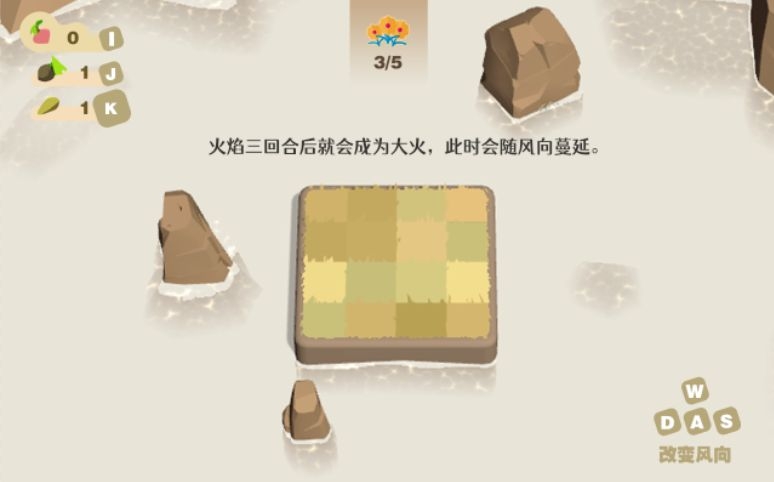
Sketch
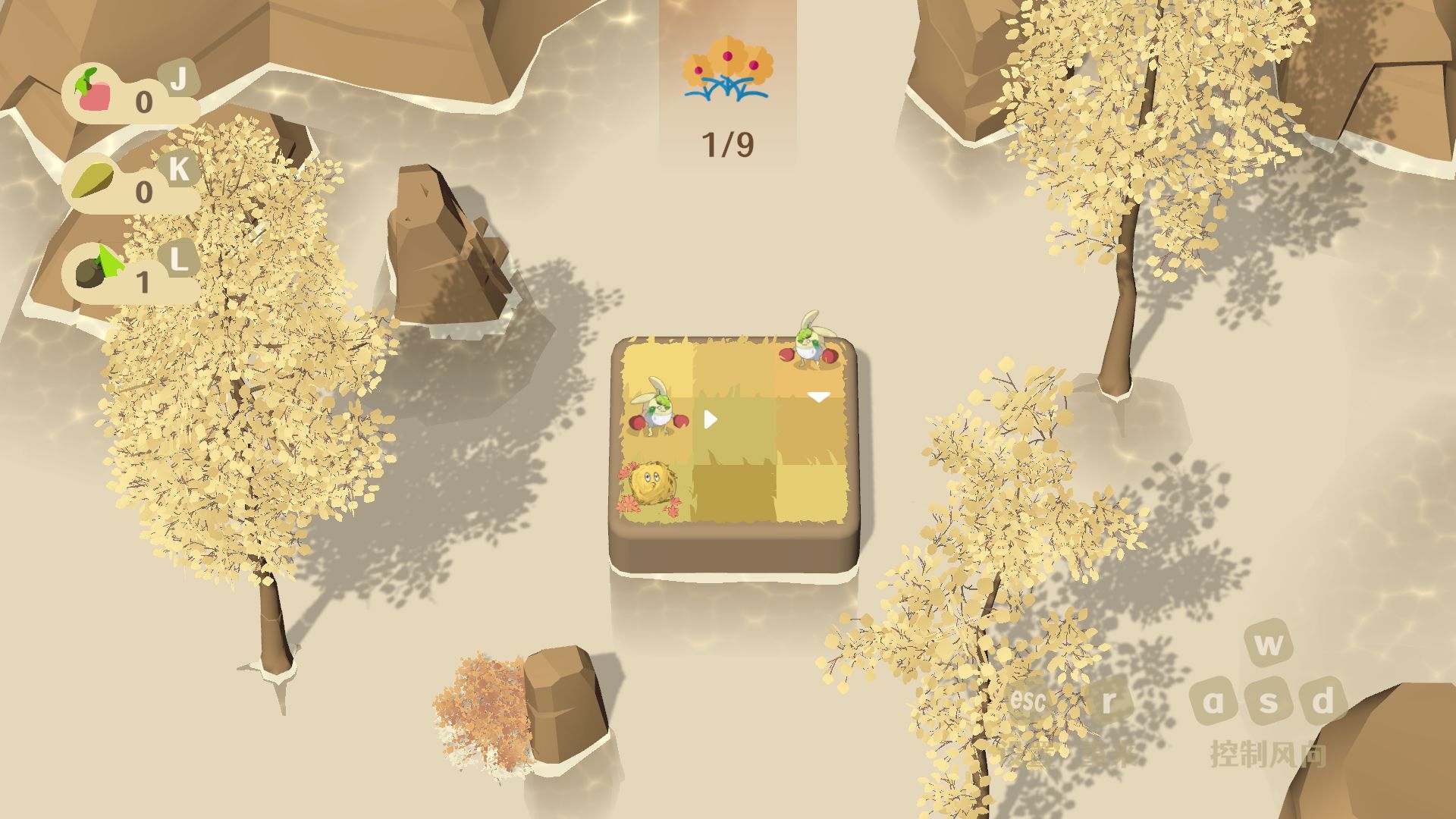
Finished version
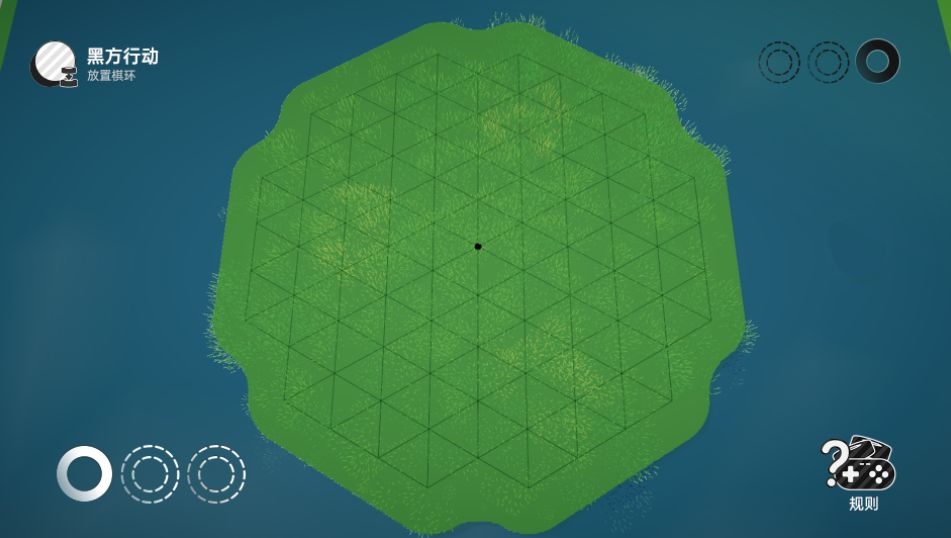
Sketch
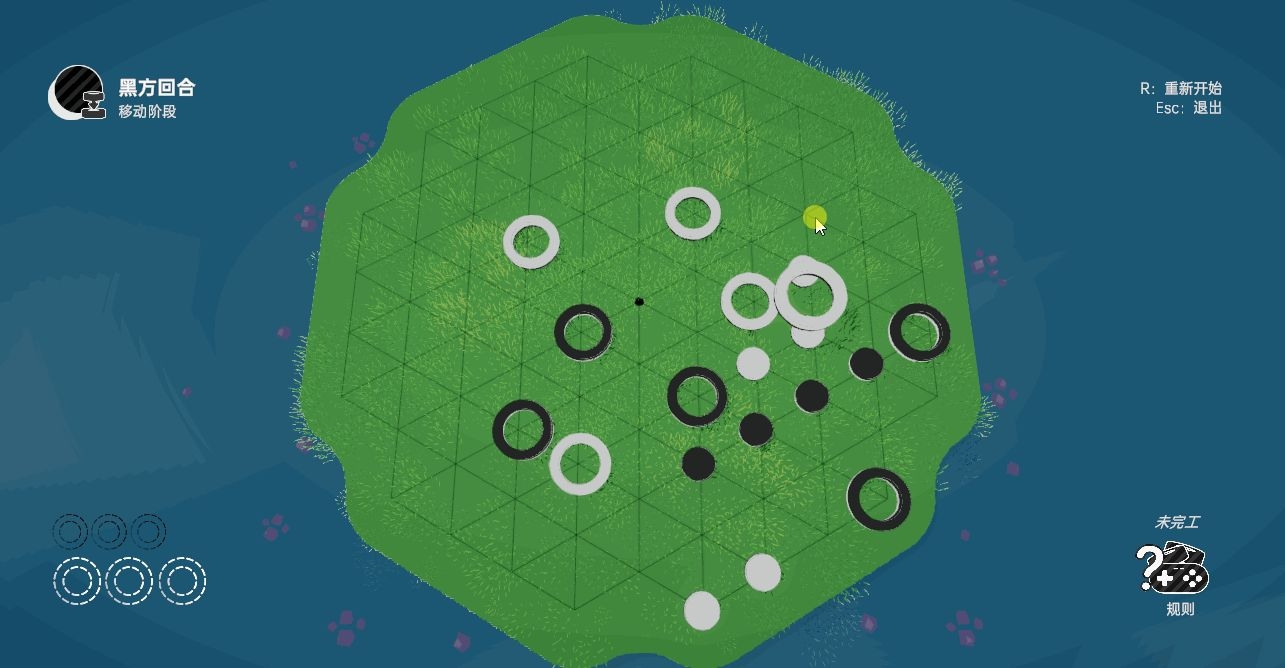
Finished version
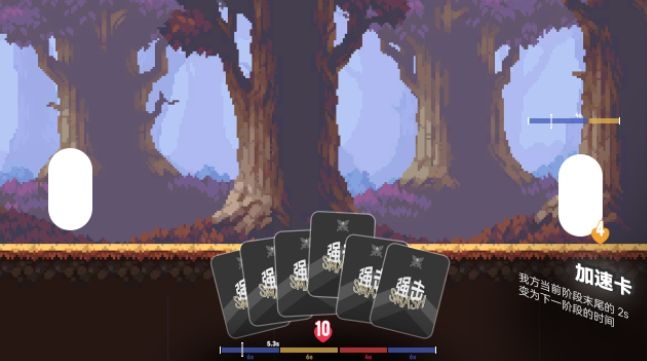
Sketch
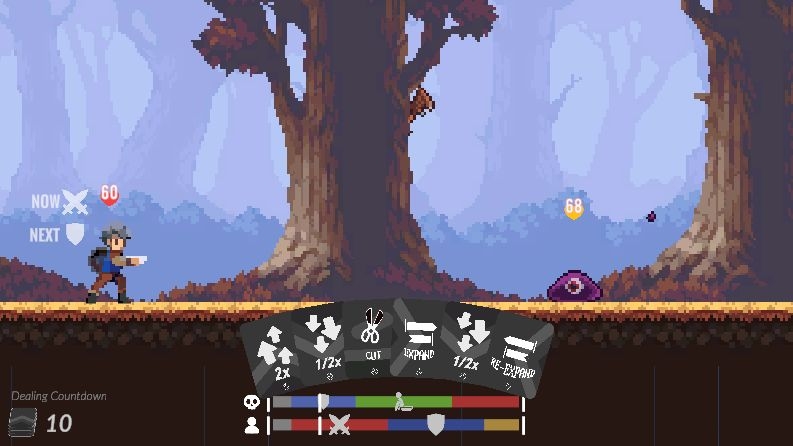
Finished version
2. Export the Image Assets Needed for the UI
Export dimensions as 2^n (for compression), and preferably keep the pixel size per unit consistent.
3. Build the UI in Unity
See below ↓
1. Building UI in Unity (UGUI)
Managing GUI Objects in Unity
For a given use case, I usually write an xxUIManager as a singleton. It contains all the GUI object references I need and the events it can trigger (quit, restart, and so on).
The xxUIManager ends up attached to a Canvas, which I then save as a prefab. To make changes, I only need to edit the prefab.
For example:
-
LevelUIManager (Canvas)
-
ButtonsPanel (Panel)
-
AButton
-
BButton
-
…
-
-
KeymapPanel
-
WinPanel
-
…
-
When a panel has too many responsibilities, I may encapsulate its operations in a script attached to that panel.
Object references in xxUIManager and panel scripts are usually exposed to external objects, but I usually don't manipulate them from those external objects. Wherever possible, I encapsulate operations on child objects under xxUIManager as methods for external callers.
Custom UI Components, CustomEditor, and Prefabs
Writing My Own UI Components
Unity's built-in UI components often don't meet my needs at all. In those cases, I write my own UI scripts, implementing common event interfaces such as IPointerClickHandler, IPointerDownHandler, Up, Enter, Exit…
I haven't made a menu with controller support yet, so this definitely leaves out controller-based selection. Readers who need controller support might want to read about the Selectable class.
Using a Custom Inspector (CustomEditor) to Easily Modify Prefab Parameters
After writing a UI script, using CustomEditor to adjust the UI is very convenient.
Unity - Manual: Create a Custom Inspector
However, when using an Editor with prefabs, I ran into a problem where changed parameters wouldn't save. After looking around, I found a solution. The Editor class:
private MyUIComponent componetSelf;
private void OnEnable()
{
    componetSelf = target as MyUIComponent;
}
public override void OnInspectorGUI()
{
    base.OnInspectorGUI();
    //objectSelf 指这个 editor 脚本所对应的组件(target)
    //objectSelf.TextComponent 是一个例子,指这个预制体内被修改的组件,这里是文字
    Undo.RecordObject(componetSelf.TextComponent, "descriptive name of this operation");
    //这里执行需要做的操作,例如修改文字的内容和字号
    componetSelf.TextComponent.text = EditorGUILayout.TextField("Name", componetSelf.TextComponent.text);
    componetSelf.TextComponent.fontSize = EditorGUILayout.FloatField("Font Size", componetSelf.TextComponent.fontSize);

    //标记文字组件被修改
    EditorUtility.SetDirty(componetSelf.TextComponent);
    PrefabUtility.RecordPrefabInstancePropertyModifications(componetSelf.TextComponent);
    //标记场景中我们的物体被修改
    EditorSceneManager.MarkSceneDirty(componetSelf.gameObject.scene);
}
Managing Asset Files
I don't usually give UI assets a separate top-level folder. Instead, I put them in a ~/UI/ directory under the folder for the corresponding asset type.
I usually name assets using the pattern <file type[lowercase]>(_<subtype[lowercase]>)_<file name[PascalCase]>. For a UI asset, an example is spr_ui_HelloWorld, where spr means Sprite, ui means UI, and HelloWorld is the file name. Other assets follow the same pattern: p_ for prefabs, ant_ for state machines, an_ for animations, and so on. The abbreviations depend on what my teammates and I recognize.
Notes on Sprites
For sprites used in UI, I recommend turning off Mipmap and changing Wrap Mode to Clamp (as needed). Both settings can cause unwanted lines around UI edges.
For setting asset properties during import, see:
Unity - Scripting API: AssetPostprocessor.OnPostprocessTexture(Texture2D)
2. Animation
The ways I implement animations can be loosely divided into three categories:
1. DoTween: Full-Featured and Convenient
Some learning overhead; complicated to manage
The DOTween website:
A DOTween tutorial series:
How to Install DOTween in Unity - Yarsa DevBlog
An overview of animation curves:
2. Writing My Own Tweener: Flexible, Controllable, and Supports Interruptions
The mathematical basis is interpolation. A recommended video:
How to Use Lerp_Bilibili_bilibili
When using DOTween, I found managing animation interruptions inconvenient. Animations could suddenly jump to their endpoints, among other problems. Also, if an object's animation hasn't finished when changing scenes or destroying the object, DOTween gives a Safe Mode warning.
So I implemented a Tweener that can be interrupted and reversed at any time (unrelated to DOTween's Tweener).
We implement a class:
    [Serializable] // 使可以在 Inspector 编辑
    public class SimpleTweener
    {
        [HideInInspector] public float time; // 动画的当前时间
        public float duration; //动画的持续时长
        public AnimationCurve curve; //动画曲线
        private bool isActive; //是否正在进行
        private bool isPositive; //是否进行正向计时
        public float ProgressRate => time / duration; //动画播放的进度
        public Action<float> doAnimation = (value) => { };
        public void Update()
        {
            if (isActive)
            {
                time = isPositive ?
                    Mathf.Min(time + Time.deltaTime, duration) :
                    Mathf.Max(time - Time.deltaTime, 0);

                if (time == 0 || time == duration) isActive = false;

                float result = curve.Evaluate(ProgressRate); //对曲线进行采样
                doAnimation.Invoke(result);
            }
        }
        public void Start()
        {
            isActive = true;
            isPositive = true;
        }
        public void Stop()
        {
            isActive = true;
            isPositive = false;
        }
    }
We then use it in our MonoBehaviour:
public class AnimationTestBehaviour : MonoBehaviour, IPointerEnterHandler, IPointerExitHandler
{
        public SimpleTweener tweener;
        public Image image;
        private void OnEnable()
        {
            tweener.doAnimation += DoTween;
        }
        private void OnDisable()
        {
            tweener.doAnimation -= DoTween;
        }

        private void Update()
        {
            tweener.Update();
        }
        void DoTween(float value)
        {
            Color color = image.color;
            color.a = value;
            image.color = color;
            image.transform.localScale = (0.5f + value) * Vector3.one;
        }
        public void OnPointerEnter(PointerEventData eventData)
        {
            tweener.Start();
        }
        public void OnPointerExit(PointerEventData eventData)
        {
            tweener.Stop();
        }
}Inspector:
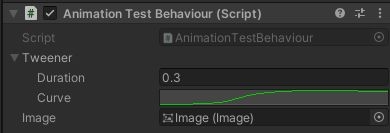
Result:
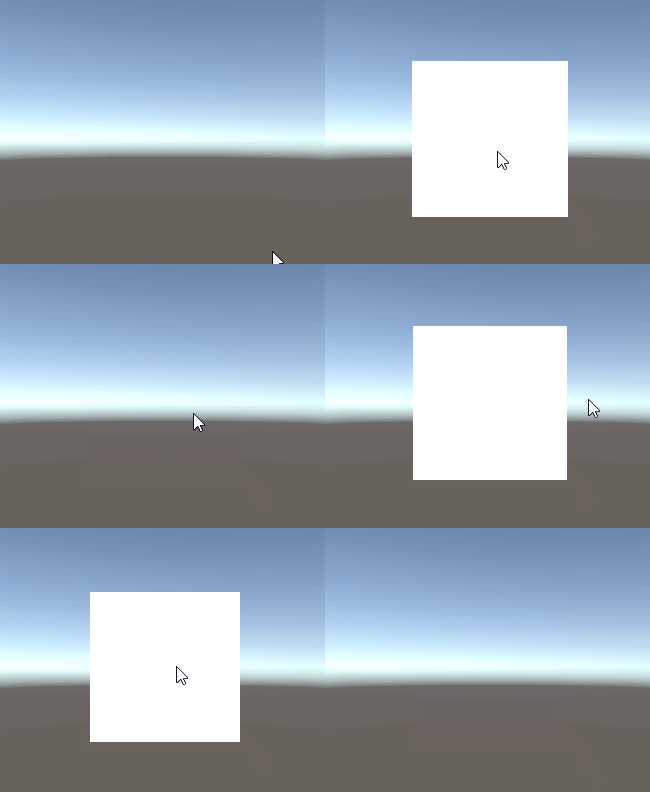
Writing my own Tweener gives me a lot of control, but it's tedious. I generally use DoTween for one-way animations.
*I imagine DOTween has a way to implement interruptible animations too, and I should learn it. //But reinventing the wheel is fun.
3. Asymptotic Approach: Quick to Write and Adaptable
Limited animation variety, poor control, and never reaches the target value
I used this method for card animations in a Ludum Dare entry:
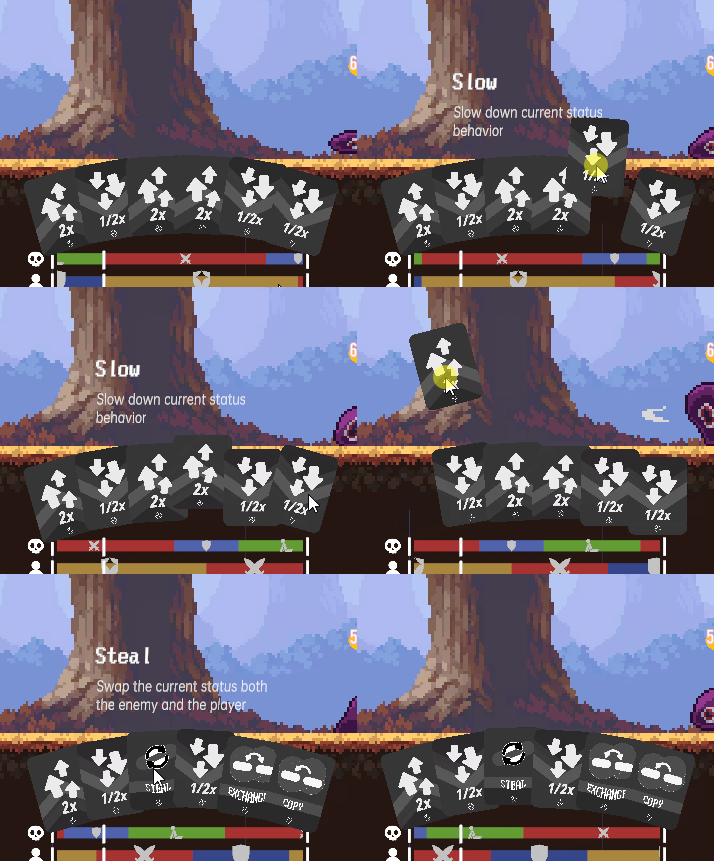
By asymptotic approach, I mean letting the actual value of the parameter we want to change approach the target value indefinitely.
Taking scale as an example, we set a target scale for an object, then let the actual value approach that target indefinitely:
float value = Mathf.Lerp(currentSize, targetSize, speed);speed is the speed of approach, between 0 and 1. If calling this in Update, remember to multiply speed by Time.deltaTime.
public void Update(){
  float currentSize = transform.localScale.x;
  currentSize = Mathf.Lerp(currentSize, targetSize, speed * (Time.deltaTime * 50f));
  image.transform.localScale = currentSize * Vector3.one;
}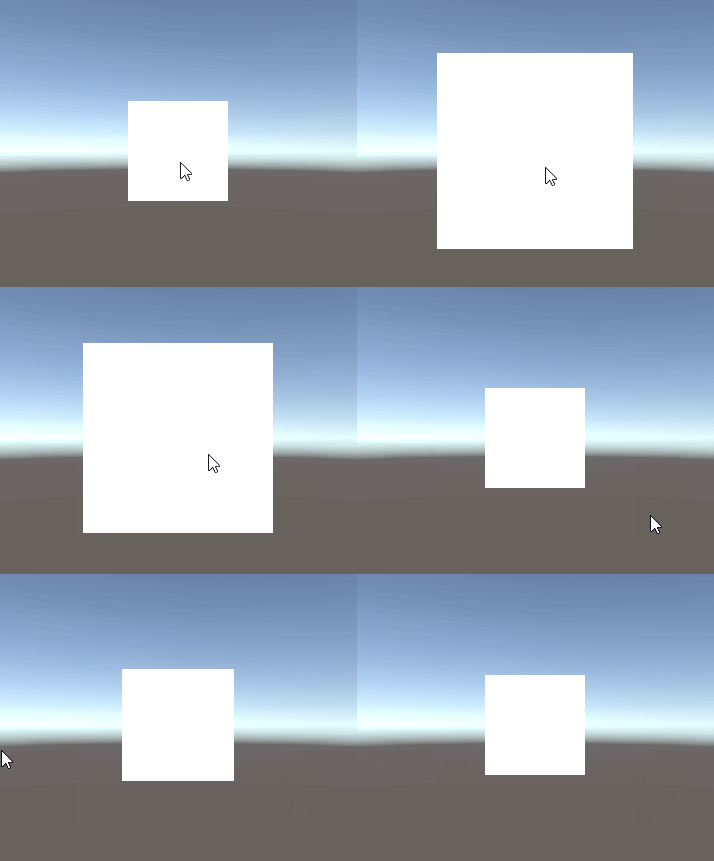
This method means the object never reaches its target value, so stopping the animation also requires checking the difference. But it's simple to manage and implement, and very convenient for making a 2D camera follow an object.
Afterword:
Looking back, I realized that all the playable games I've finished are game jam entries. The games I dream up and develop in private aren't suitable to show, and they're not finished enough to be presentable. So all the UI art in this article was produced quickly for game jams, and there are bound to be plenty of nonstandard practices.
I enjoy making UI. Whenever I have a game idea, the first thing I do is make the UI. I've made UI for quite a few games, but barely started the games themselves, haha. If I get the chance, I'd love to meet more people and make some fun, good-looking games together.