Optimizing My Keyboard Layout for a Better Life
2025-12-22
Auto translated into English by AI.
Preface
I used to use a keyboard layout with a few simple changes to QWERTY. The main mappings swapped Cmd/Ctrl with Capslock, then mapped Cmd+U/I/O to symbols like & * _, which come up often when writing Rust and C++. But after using it for a long time, I found that this arrangement put a lot of strain on my left pinky.
-
Both Shift and Cmd fell to my pinky.
-
QWERTY also puts many common programming symbols behind combinations of Shift and another key (such as <>+:?).
-
Some UpperCamelCase naming conventions require frequent presses of Shift (Unreal's naming conventions are left-pinky hell).
So I decided to redesign my keyboard layout.
The new keyboard layout
Programmers here on Earth have already developed many keyboard layouts to improve the programming experience, and I drew on their designs. Two fairly classic design paradigms are “layers” and “Home Row Mods.” The former lets a keyboard have different virtual input layers, while the latter is a way of arranging modifier keys. My new layout uses both, and is still based on QWERTY. In designing it, I kept many of QWERTY's features so I wouldn't forget how to use other people's keyboards, and so other people could still use mine.
I should also mention that this redesign is software-based, not hardware-based. The software is Kanata, an open-source key-remapping tool that supports MacOS, Windows, and Linux. My physical keyboard is still an ordinary 68-key QWERTY keyboard.
Layout design
Kanata supports layers, and its default keyboard state is a layer named base. So I also call the keyboard's initial or default layer Base.
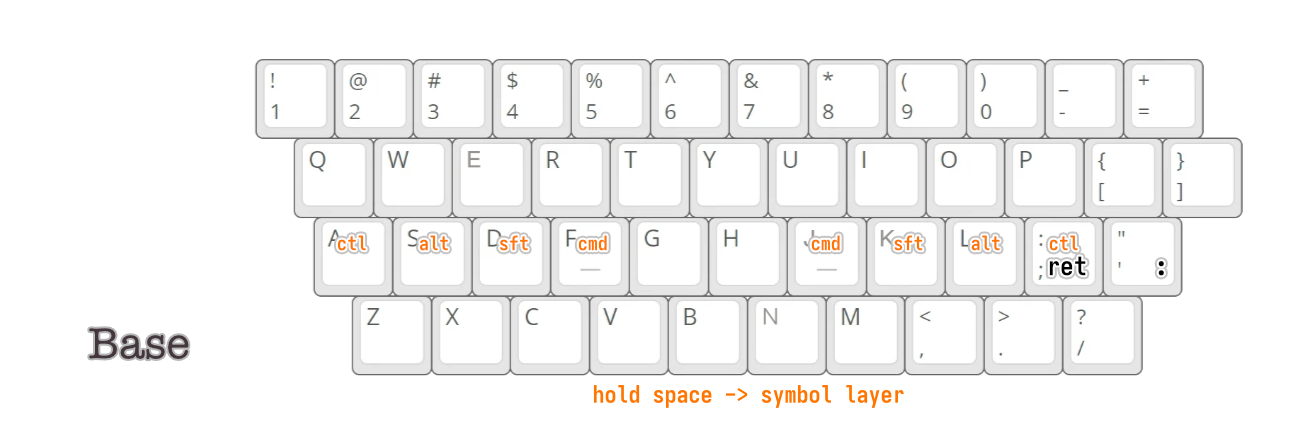
My Base layer is the entry point to the other layers. It uses Home Row Mods: the eight keys under your fingers when your hands rest naturally become modifier keys when held, but remain their original keys when tapped. The image shows the specific mappings. My Base layer also changes two symbol keys: I changed ; to Enter and ” to :. Don't worry about losing those symbols; I've reserved places for them in the symbol layer. The benefits of moving Enter closer hardly need explaining. Since : is used frequently in Vim, much more often than the single quote, I made this choice.
In Kanata and other key-remapping software, keys can use a mode called
tap-hold-release. Its behavior is to send key<A>when a key is pressed and released within a short time. If the key is held (not released) while the user presses and releases another key, it sends key<B>. A and B can be configured freely.
Command layer: Cmd modifiers and Vim-style movement
In my design, the Command layer is entered when Command (on MacOS) or Ctrl (on Windows) is pressed. This layer lets me use Vim-style cursor movement. You can think of its behavior as Cmd+H → left, Cmd+J → down… Also, any positions in the image without a behavior written out behave as Cmd+key.
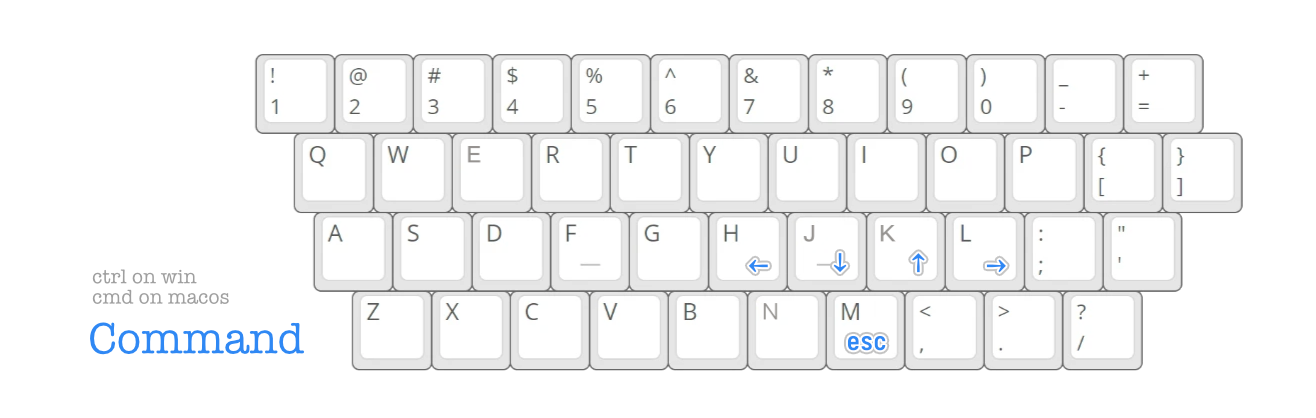
Since F and J are mapped to Cmd in the Base layer, I can use F+H/J/K/L to send arrow keys, J+C/V to copy and paste, and other convenient combinations.
Altaction layer: quick cursor operations and Backspace
Like the Command layer, the Altaction layer lets me use Vim-style cursor controls outside Vim-family software. But it moves the cursor by word. Its target mappings are Ctrl+arrow key on Windows and Option+arrow key on MacOS. I'm calling it Altaction for now (because Kanata's physical key name for Option is still Alt). Also, Space in the Altaction layer is mapped to Backspace, so deleting a single character no longer requires moving my hand to the keyboard's top-right corner and back.
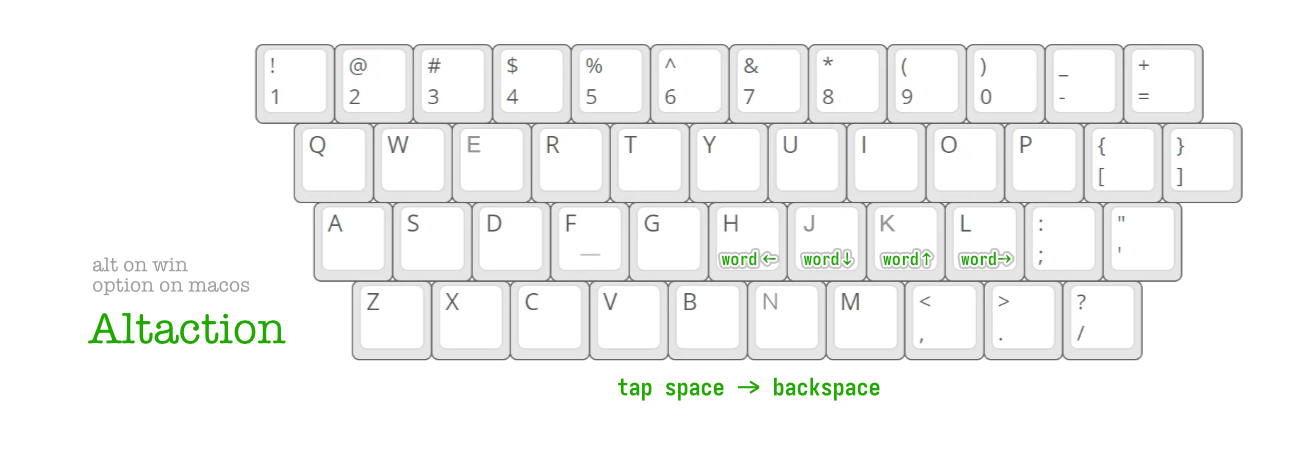
So I can use S+H/J/K/L to move the cursor quickly and S/L+Space to send Backspace.
Symbol layer: entering symbols without moving my palms
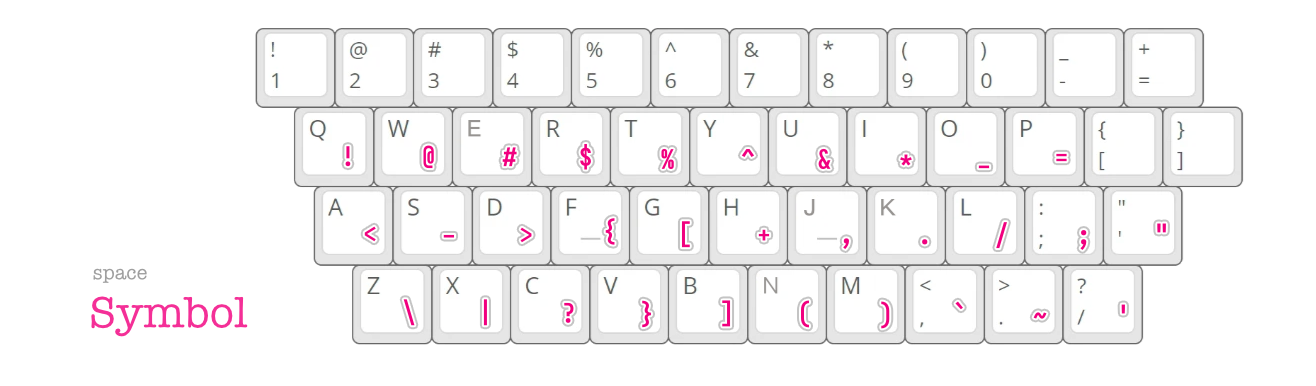
As the name suggests, the symbol layer contains various symbols. Holding Space activates it. This layer's layout has been tested through my own use, with repeated changes during the first two weeks after designing it. Eventually, I settled on the current design shown below. If you're curious about why I arranged it this way, follow the text below alongside the image.
-
The first half of the second row comes from the symbols originally produced by holding Shift on the number keys. They aren't especially frequent or infrequent, and this arrangement makes them easier to remember.
U/I/Oare prime positions for the right hand, so I assigned them three symbols used very often in C++ and Rust:& * _. -
The third row has the best positions on the whole keyboard, and I put very common programming symbols there. The
- >combination appears often in some languages, so these keys sit next to each other.{ [are fairly common, but an IDE usually completes the other half, so I put only the opening ones in this row., . /come up often in the terminal. As for why( )are on the third row, I found that pressing N and M with my right hand is more comfortable than pressing H. Since( )appear very frequently in all kinds of programming languages, I reserved the prime N and M positions for parentheses. -
Elsewhere,
; “have had their Base layer positions taken over, so they go in the symbol layer. Also,“is used more often in the languages I commonly write, so I put it in the easier-to-press position, with‘below it.
Caps state: easier UPPER_SNAKE_CASE
The caps state is designed for typing UPPER_SNAKE_CASE. I configured tapping Shift to enter this state. In the caps state, every letter I type is uppercase, and most symbols also have the Shift modifier applied (mainly so - becomes _). To leave the caps state, just press Space or tap Shift.
Gaming layer: no remapping
This is simply a layer with no remapping that follows the original physical keys. I use it when gaming or when someone else uses my computer. Pressing Shift+ESC switches between the gaming layer and Base.
Using Kanata
I highly recommend reading the official Kanata Configuration Guide to learn how to use Kanata. It's clear and comprehensive.
You're also welcome to use my configuration repository as a reference: